Basic Tutorial
In this tutorial, we’ll see how RTMet’s workflow can automatically ingest and process .raw files. You’ll be using the command line, so we assume you are at least familiar with it.
If you don’t have RTMet installed already, see how to do that here.
Creating a workflow run
Open your Terminal. We’ll start by making sure you don’t have any Conda environment activated, and that you can access the cylc command:
$ for i in $(seq ${CONDA_SHLVL}); do conda deactivate; done
$ cylc help
Note
If you get an error, verify that the wrapper script was correctly set up.
Now, install a runnable copy of the workflow. It will create a run directory at
~/cylc-run/bioreactor-workflow/run1:
$ cylc install bioreactor-workflow
INSTALLED bioreactor-workflow/run1 from ~/cylc-src/bioreactor-workflow
Right now, it isn’t active. Let’s change that by running:
$ cylc play bioreactor-workflow
 ▪ ■  Cylc Workflow Engine 8.2.4
 ██   Copyright (C) 2008-2024 NIWA
▝▘    & British Crown (Met Office) & Contributors

2024-06-17T11:37:56+02:00 INFO - Extracting job.sh to cylc-run/bioreactor-
workflow/run1/.service/etc/job.sh
bioreactor-workflow/run1: your-computer.local PID=27143
Make sure the workflow is now running with the cylc scan command. It should return the name of the run.
We can monitor what the workflow is doing by running cylc tui bioreactor-workflow, which opens Cylc’s Terminal User Interface (TUI).

You can see cycles and tasks ordered in a tree-like fashion. But right now, nothing is happening. Let’s supply some .raw files for the workflow to ingest.
Processing .raw files
Inside the run directory you made, you can find a raws/ subdirectory, which the
workflow is monitoring for input files.
For the purpose of the tutorial, let’s download some Thermo .raw files from RTMet’s repository. Their numbering follows the order in which the samples were extracted and analysed, and so it constitute a time series.
The first one is named std_30sec_CarboAmmo_10mM_01.raw. Copy it inside raws/. After
a few seconds, the workflow run starts processing it.
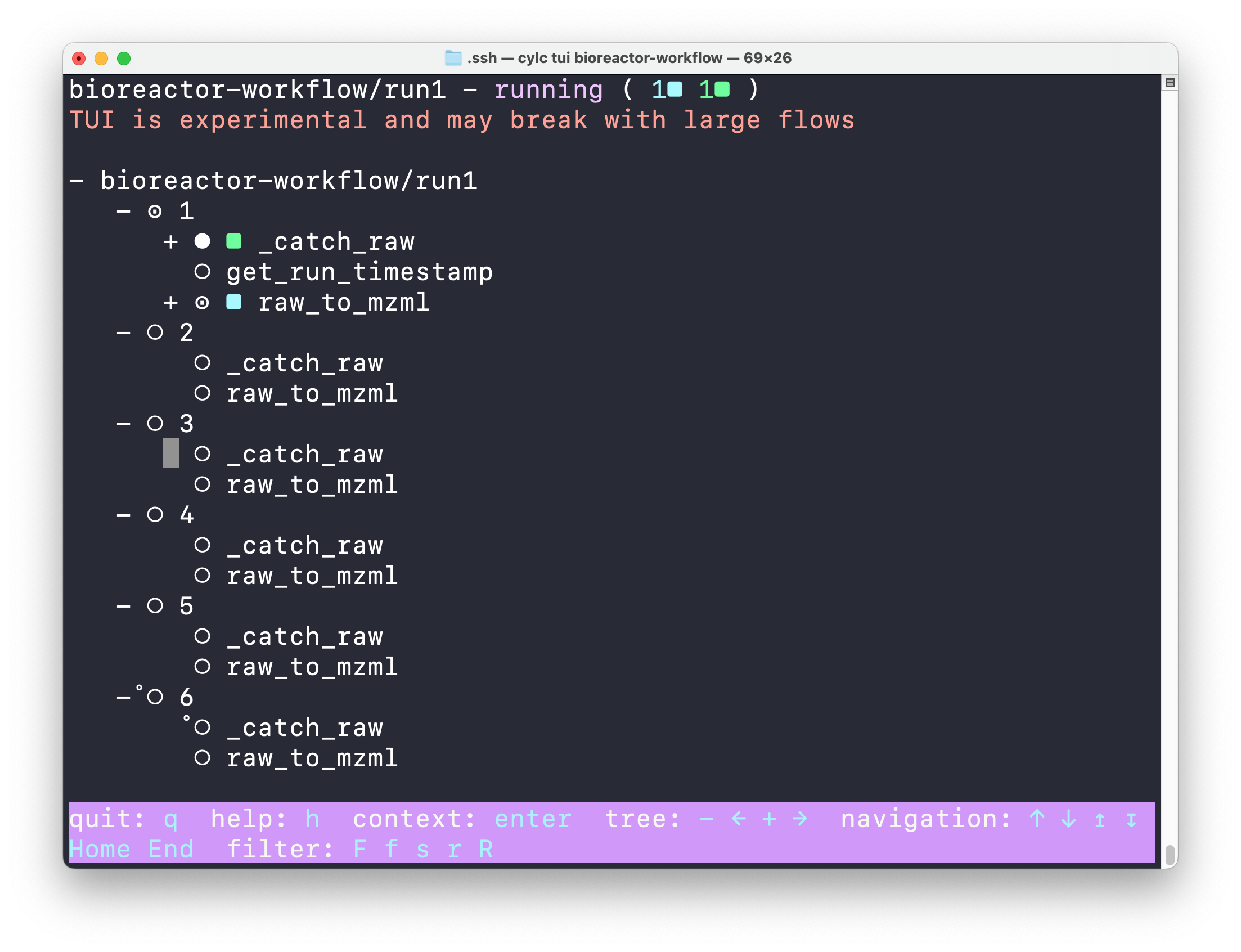
Now, copy std_30sec_CarboAmmo_10mM_03.raw (_03 !) to raws/. You’ll see that the file
is processed in cycle nº3, even though it’s the second file added to the input directory.
Finally, copy the 3 remaining files. The should start being processed in parallel.
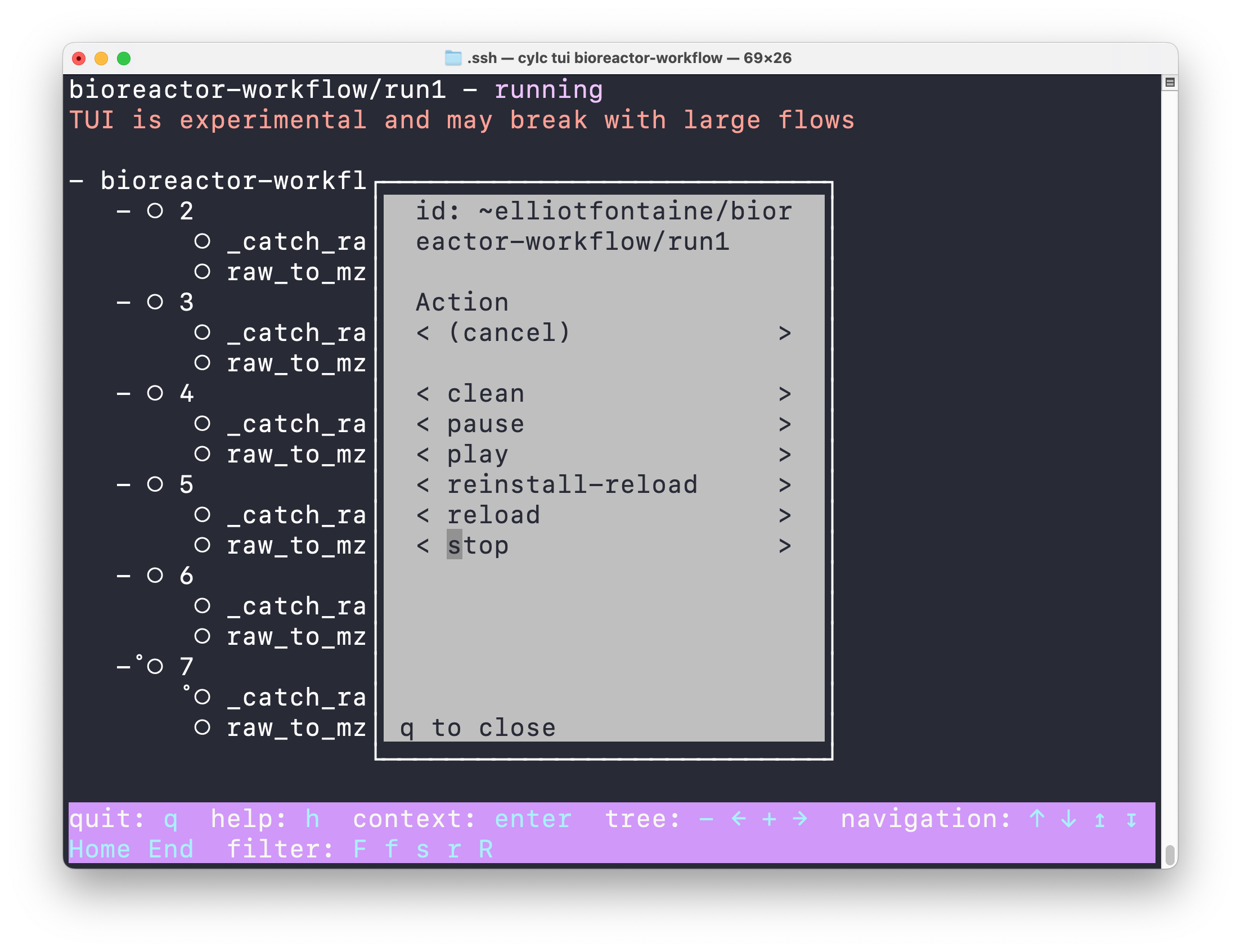
Once it is done, move your cursor in the TUI with ↑/↓ until you reach the first line (bioreactor-workflow/run1) and press Enter. It should open a contextual menu. Move the cursor to stop or click on it. This will shut down the workflow run and close the TUI.
Viewing results
Still inside the run directory, there is a share/ subdirectory. This is were you’ll find the
results. Go in ./cycle/1/dataflow and open std_30sec_CarboAmmo_10mM_01.matches.csv.
It’s a table containing identified metabolites in the first sample.
datetime |
cycle |
instrument_id |
isobaric_id |
feature_mz |
feature_pol |
delta_ppm |
intensity |
|---|---|---|---|---|---|---|---|
2023-06-21T17:30:53.439Z |
1 |
orbitrap_01 |
acetate |
59.01394 |
n |
1.52507 |
1249.25155 |
2023-06-21T17:30:53.439Z |
1 |
orbitrap_01 |
propionate |
73.02959 |
n |
1.23238 |
814.97559 |
2023-06-21T17:30:53.439Z |
1 |
orbitrap_01 |
pyruvate |
87.00872 |
n |
-0.57465 |
39195.57292 |
… |
|||||||
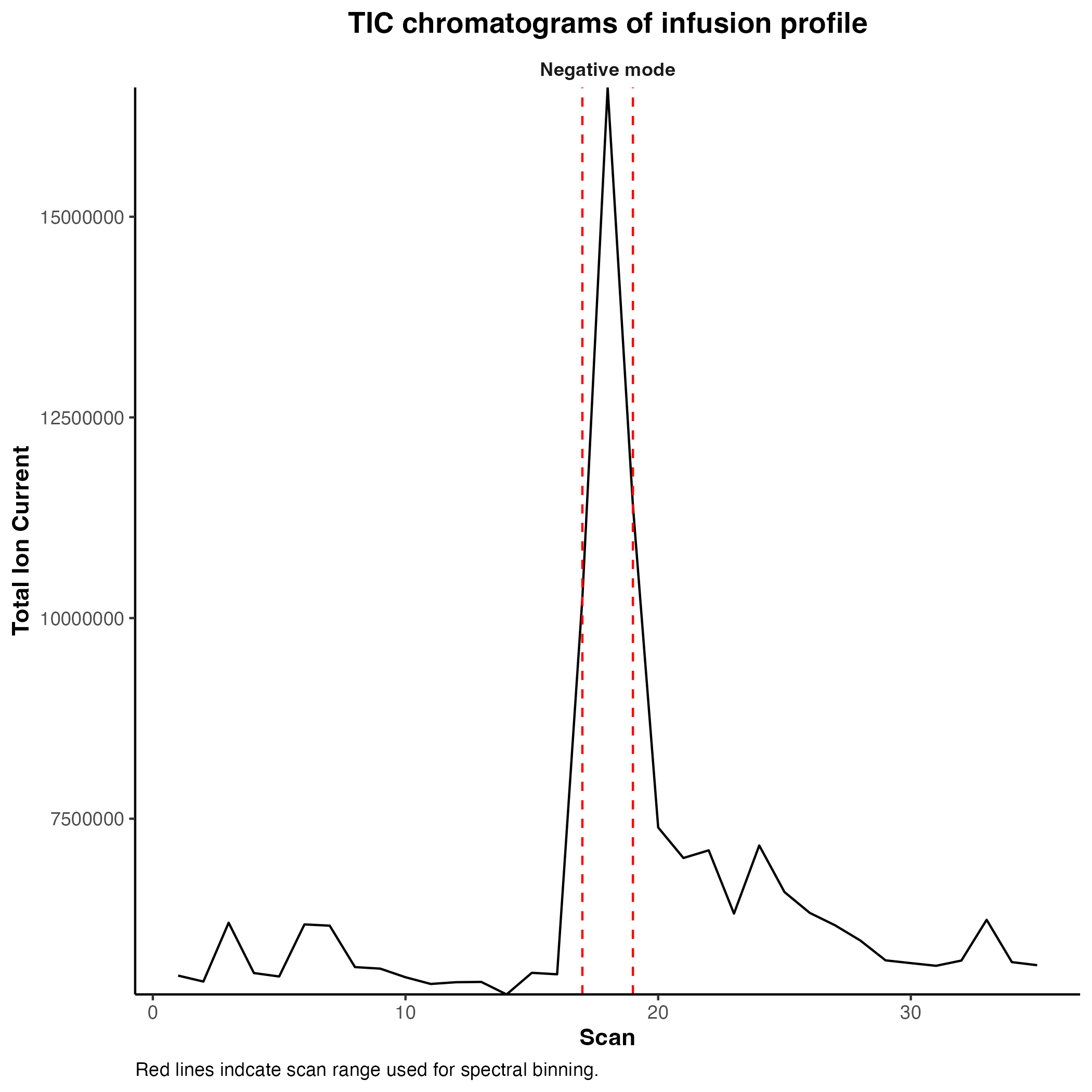
Go in ./cycle/1/qc to view some quality control results.
Open std_30sec_CarboAmmo_10mM_01.infusion_scans.png. It represents the Total Ions Count and
which scans were selected as the sample injection.
Deleting the workflow run
You can now delete bioreactor-workflow/run1. To do it properly, run the following command.
Make sure that the workflow was stopped beforehand or it won’t work.
$ cylc clean bioreactor-workflow/run1
INFO - Removing directory: ~/cylc-run/bioreactor-workflow/run1
It will remove the run1 run directory, with all of its files (including results).
If you have multiple runs of bioreactor-workflow installed and use cycl clean bioreactor-workflow, Cylc will ask you the permission to delete all of them.